> ## Documentation Index
> Fetch the complete documentation index at: https://docs.aurogen.site/llms.txt
> Use this file to discover all available pages before exploring further.

# 配置概览

### 什么是Brains？

**Brain** 是 Aurogen 中用于定义智能体模型能力的一组配置。它统一管理模型类型、Provider 接入方式、API 参数、上下文容量以及思考能力等关键设置。作为智能体的“思维中枢”，Brains 决定了智能体如何理解输入、组织上下文并生成响应。通过 Aurogen 的 Web 配置界面，用户可以为不同智能体选择合适的 Brain，在轻量问答、通用协作和复杂推理等场景之间灵活切换。

### 创建Brain

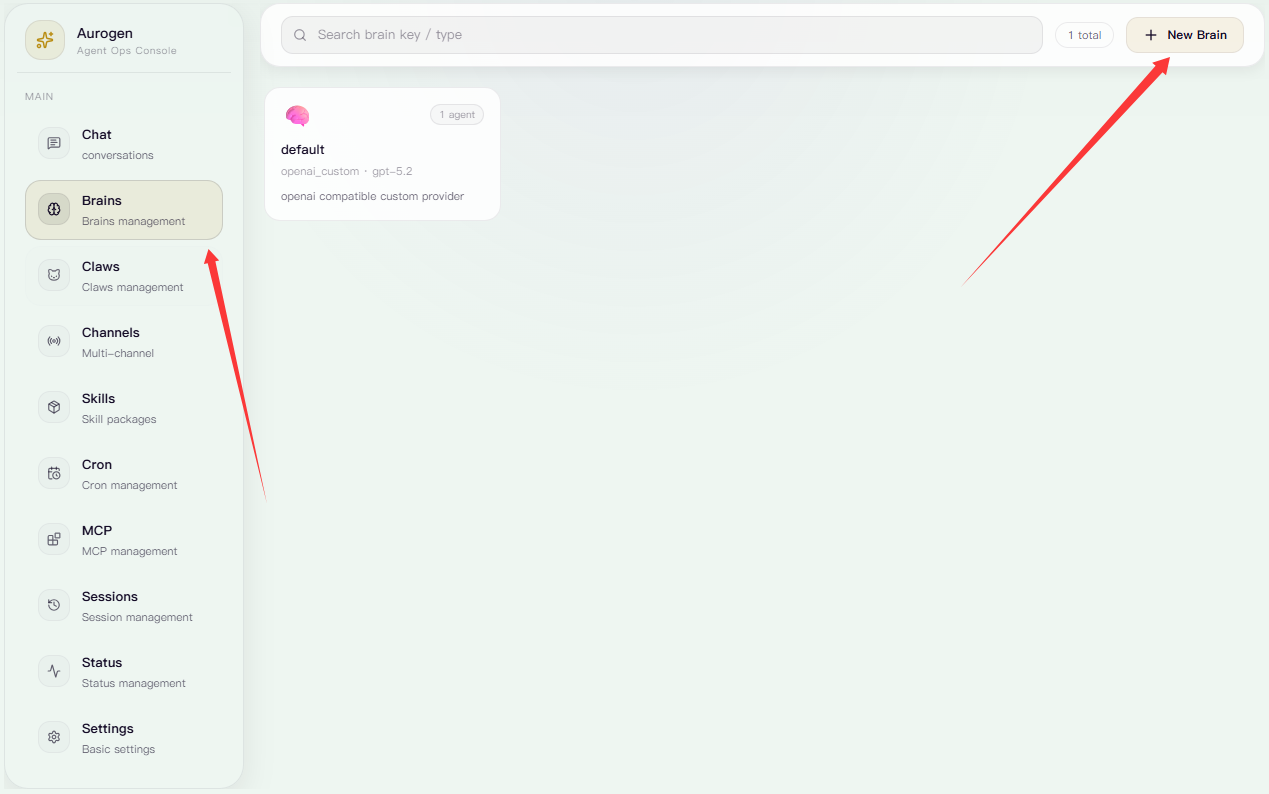
进入左侧 **Brains** 页面后，点击右上角的 “**New Brain”**，进入 Brain 详情配置页。

<Frame>
  <img src="https://mintcdn.com/123-1747710f/gWUKFUHLuaibsRA3/images/image-12.png?fit=max&auto=format&n=gWUKFUHLuaibsRA3&q=85&s=e105479a88abc6167bcbf3d7ae51d46b" alt="Image" width="1269" height="794" data-path="images/image-12.png" />
</Frame>

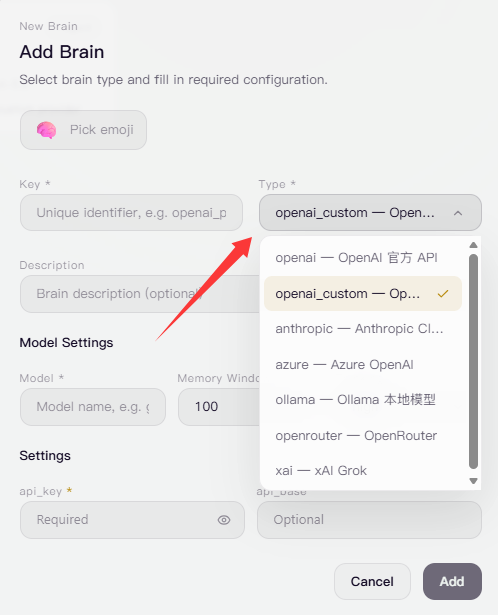
选择Provider对应的接入方式

<Frame>
  <img src="https://mintcdn.com/123-1747710f/gWUKFUHLuaibsRA3/images/image-17.png?fit=max&auto=format&n=gWUKFUHLuaibsRA3&q=85&s=cb1e9dd52b2a507d6f6457745c6a19ae" alt="Image" width="498" height="615" data-path="images/image-17.png" />
</Frame>

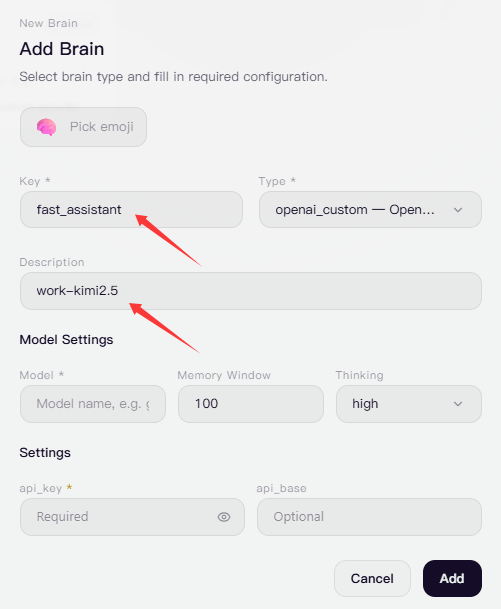
填写该 Brain 的唯一标识名称（不可重复），并根据需要补充描述信息。

<Frame>
  <img src="https://mintcdn.com/123-1747710f/gWUKFUHLuaibsRA3/images/image-18.png?fit=max&auto=format&n=gWUKFUHLuaibsRA3&q=85&s=23fcf20854389b17791ab99a6f9fa7c8" alt="Image" width="501" height="609" data-path="images/image-18.png" />
</Frame>

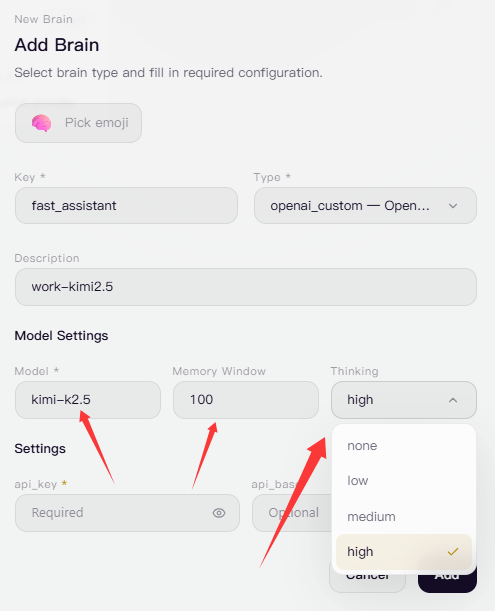
输入要调用的模型名称，并设置上下文容量与思考能力。

<Frame>
  <img src="https://mintcdn.com/123-1747710f/gWUKFUHLuaibsRA3/images/image-19.png?fit=max&auto=format&n=gWUKFUHLuaibsRA3&q=85&s=0399a7ccdbd0e91582b1d4a0c400b8c7" alt="Image" width="495" height="611" data-path="images/image-19.png" />
</Frame>

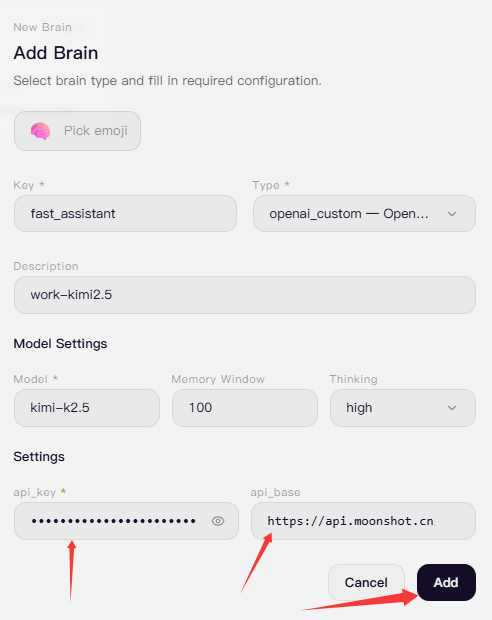
继续填写 API 调用相关参数，完成后点击添加创建 Brain。

<Frame>
  <img src="https://mintcdn.com/123-1747710f/gWUKFUHLuaibsRA3/images/image-21.png?fit=max&auto=format&n=gWUKFUHLuaibsRA3&q=85&s=f35c74cd08c9771e3cc6d13852620869" alt="Image" width="492" height="620" data-path="images/image-21.png" />
</Frame>

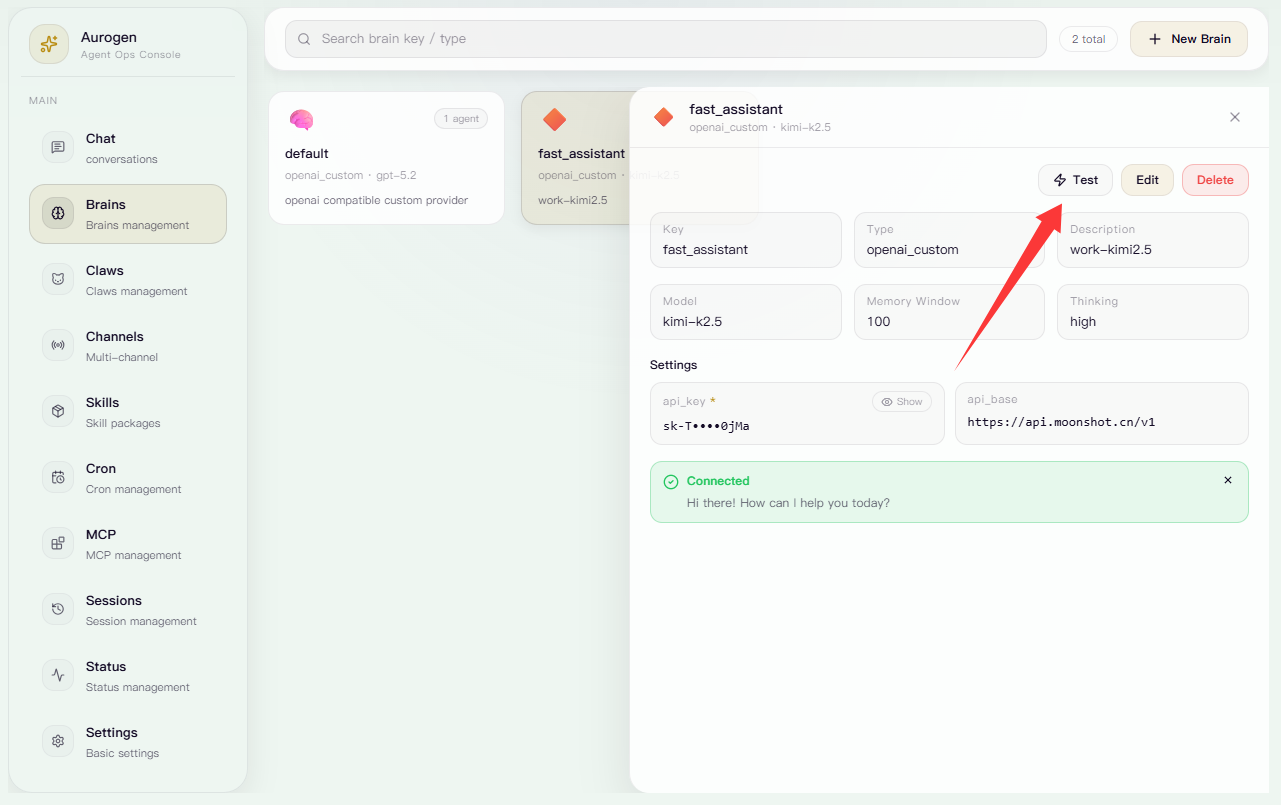
点击”测试“发起一次 API 连通性测试。系统会根据当前填写的设置向对应模型服务发送测试请求；若配置正确，页面下方会显示成功提示，说明该 Brain 已能够正常完成模型调用。若测试失败，则需要检查 API Key、接口地址、模型名称以及网络连接是否填写正确。

<Frame>
  <img src="https://mintcdn.com/123-1747710f/gWUKFUHLuaibsRA3/images/image-24.png?fit=max&auto=format&n=gWUKFUHLuaibsRA3&q=85&s=b97383824052e69b2eca92b3a1e088ad" alt="Image" width="1281" height="805" data-path="images/image-24.png" />
</Frame>

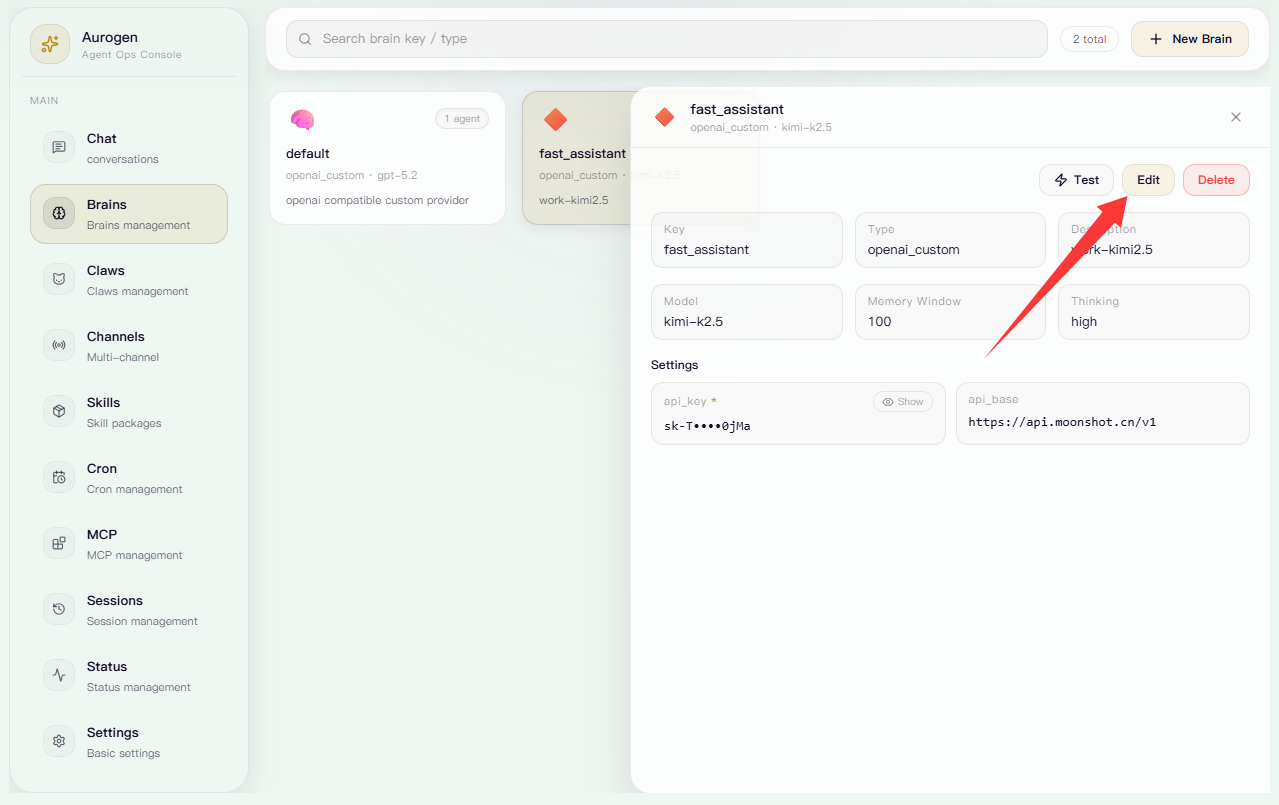
点击“编辑”可进行对应Brain配置修改。

<Frame>
  <img src="https://mintcdn.com/123-1747710f/gWUKFUHLuaibsRA3/images/image-25.png?fit=max&auto=format&n=gWUKFUHLuaibsRA3&q=85&s=e980a06f95400485b68f51f34336aa2d" alt="Image" width="1279" height="805" data-path="images/image-25.png" />
</Frame>

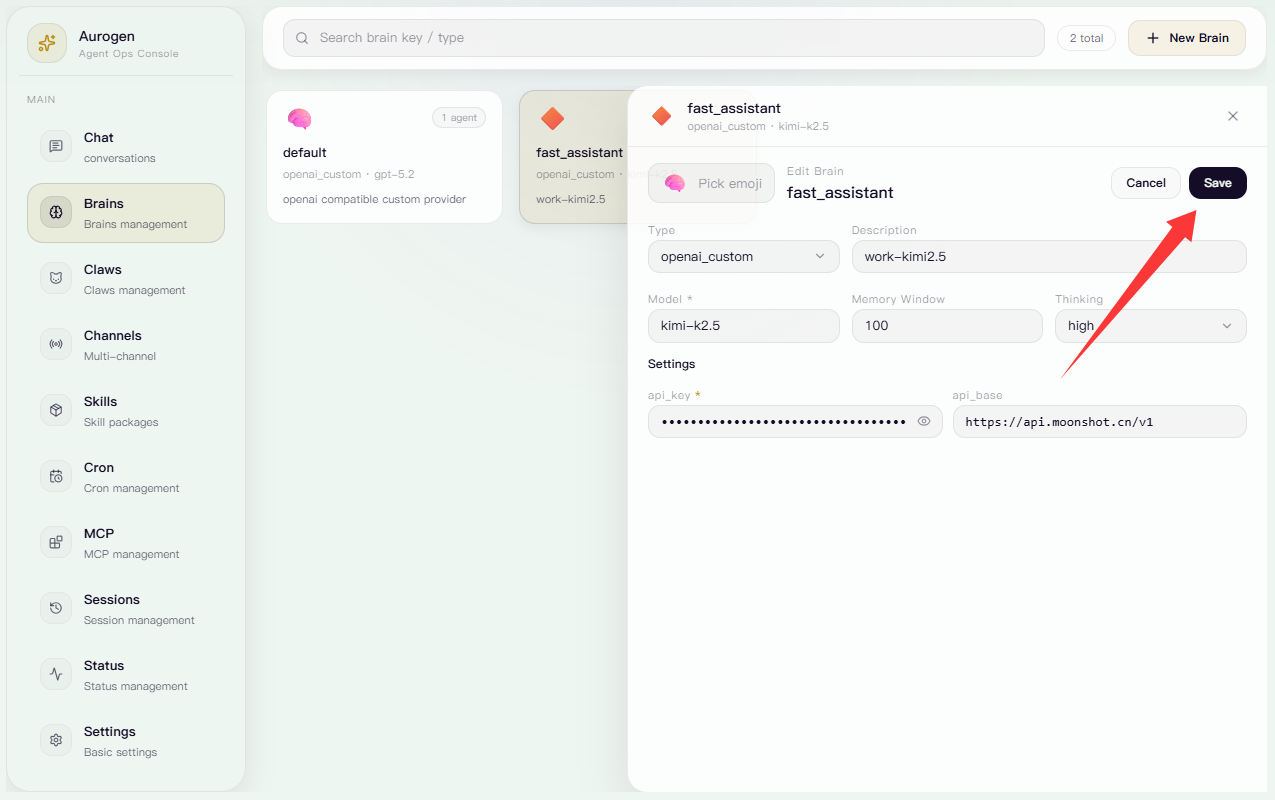
完成修改后，点击“保存”即可退出编辑页

<Frame>
  <img src="https://mintcdn.com/123-1747710f/gWUKFUHLuaibsRA3/images/image-26.png?fit=max&auto=format&n=gWUKFUHLuaibsRA3&q=85&s=9e4b4afbccb717637fb897e67b0383fa" alt="Image" width="1275" height="800" data-path="images/image-26.png" />
</Frame>

### 删除Brain

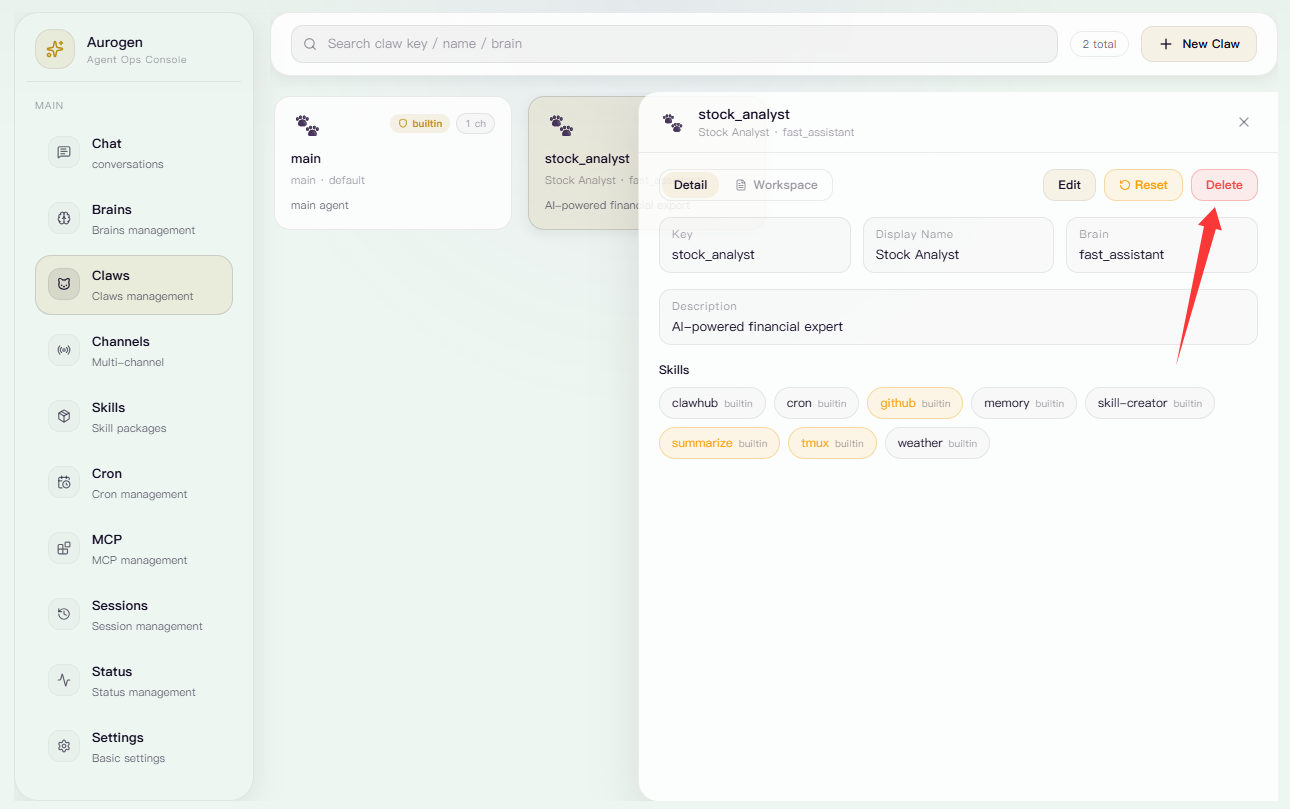
选中需要删除的Brain，点击右上角的“删除”按钮

<Frame>
  <img src="https://mintcdn.com/123-1747710f/ZTv8HeVwuNPVr9fN/images/image-41.png?fit=max&auto=format&n=ZTv8HeVwuNPVr9fN&q=85&s=264b27f0fce7b473ecee1666dacccdc7" alt="Image" width="1290" height="809" data-path="images/image-41.png" />
</Frame>

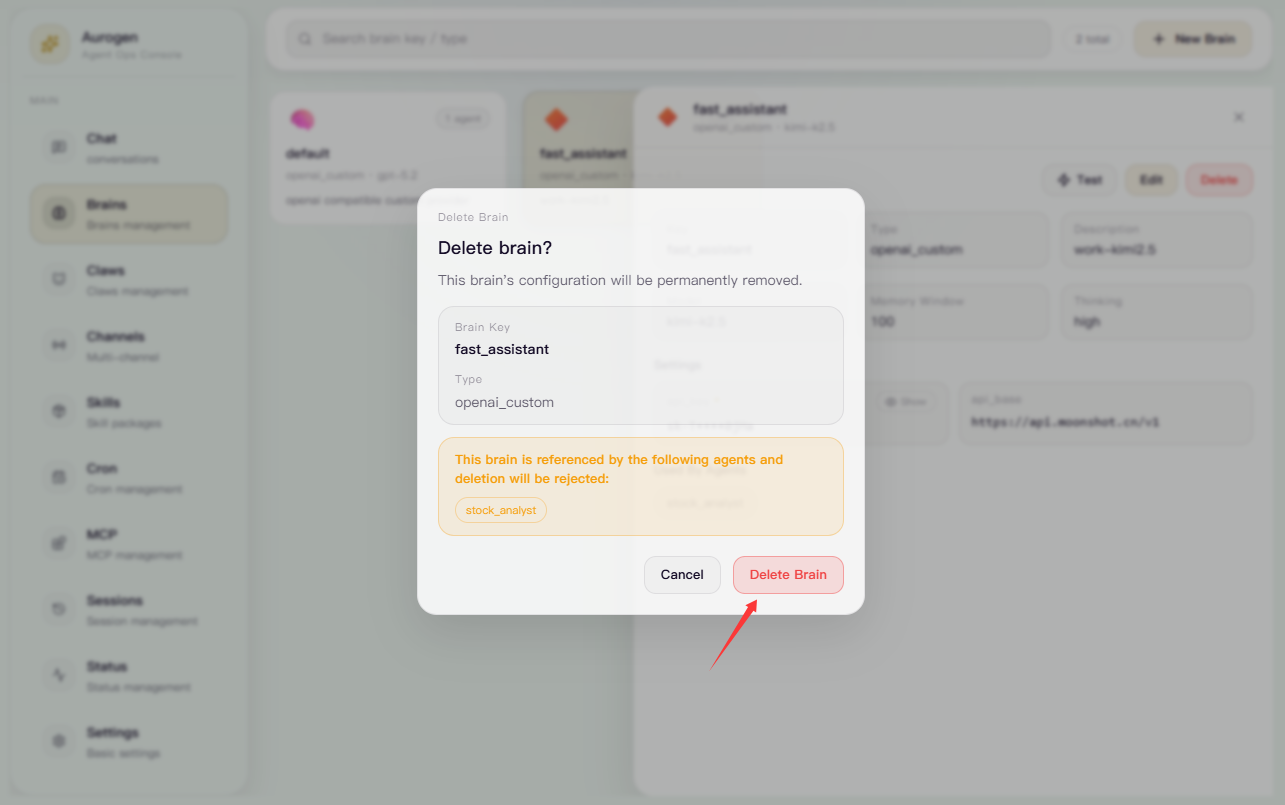
确认无误后点击“删除Brain”即可完成删除。

<Frame>
  <img src="https://mintcdn.com/123-1747710f/1AnG_7Mi5RWgeuYk/images/image-42.png?fit=max&auto=format&n=1AnG_7Mi5RWgeuYk&q=85&s=f8624e39da6af3db5706448805cb0e71" alt="Image" width="1285" height="805" data-path="images/image-42.png" />
</Frame>