> ## Documentation Index
> Fetch the complete documentation index at: https://docs.aurogen.site/llms.txt
> Use this file to discover all available pages before exploring further.
# Quick setup
Open [http://localhost:8000/settings](http://localhost:8000/settings).
If you are using a development deployment, open [http://localhost:5173/settings](http://localhost:5173/settings).
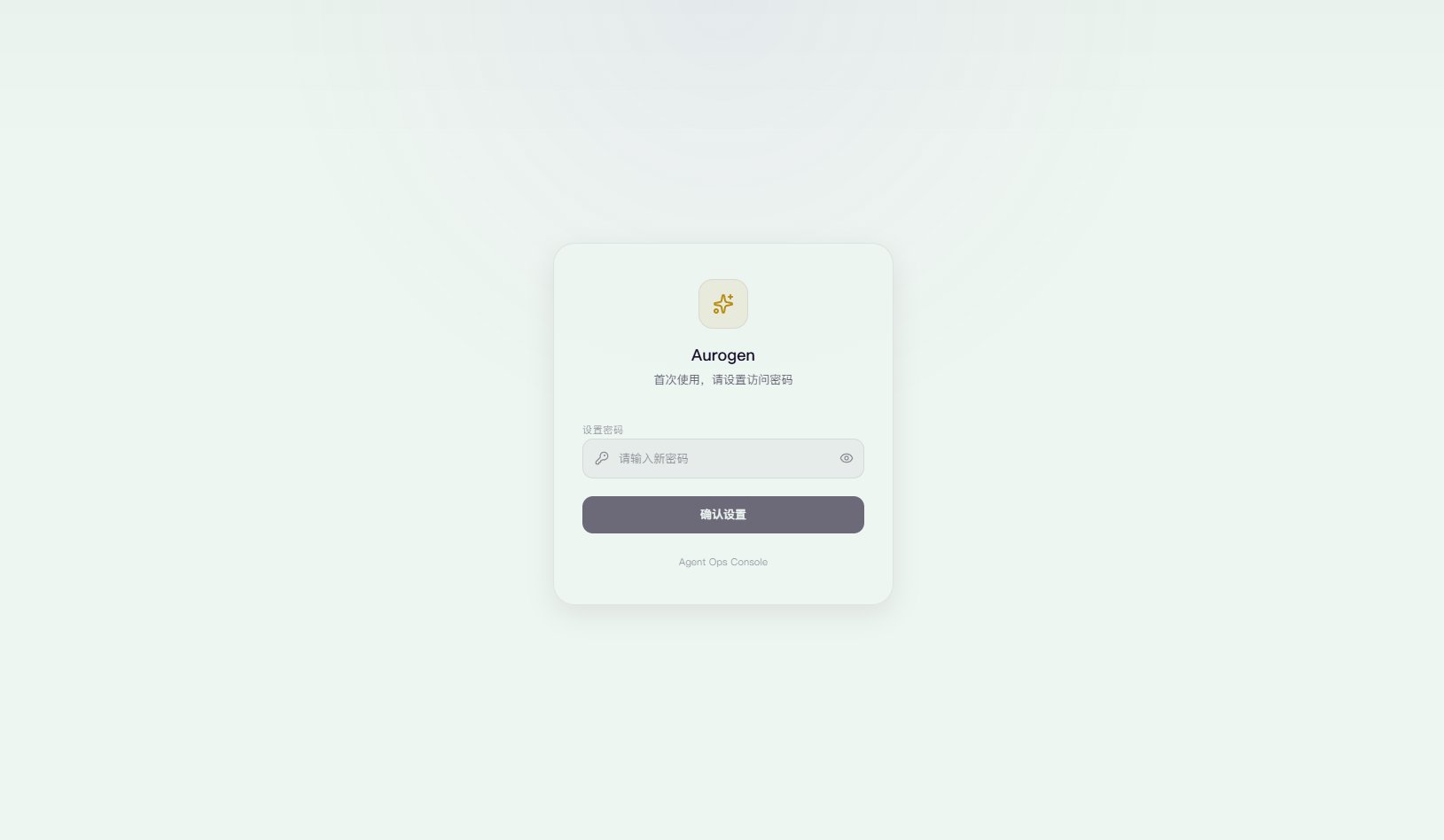 ## Set a password
Set a password for the panel. The password is stored persistently in your browser.
## Set a password
Set a password for the panel. The password is stored persistently in your browser.
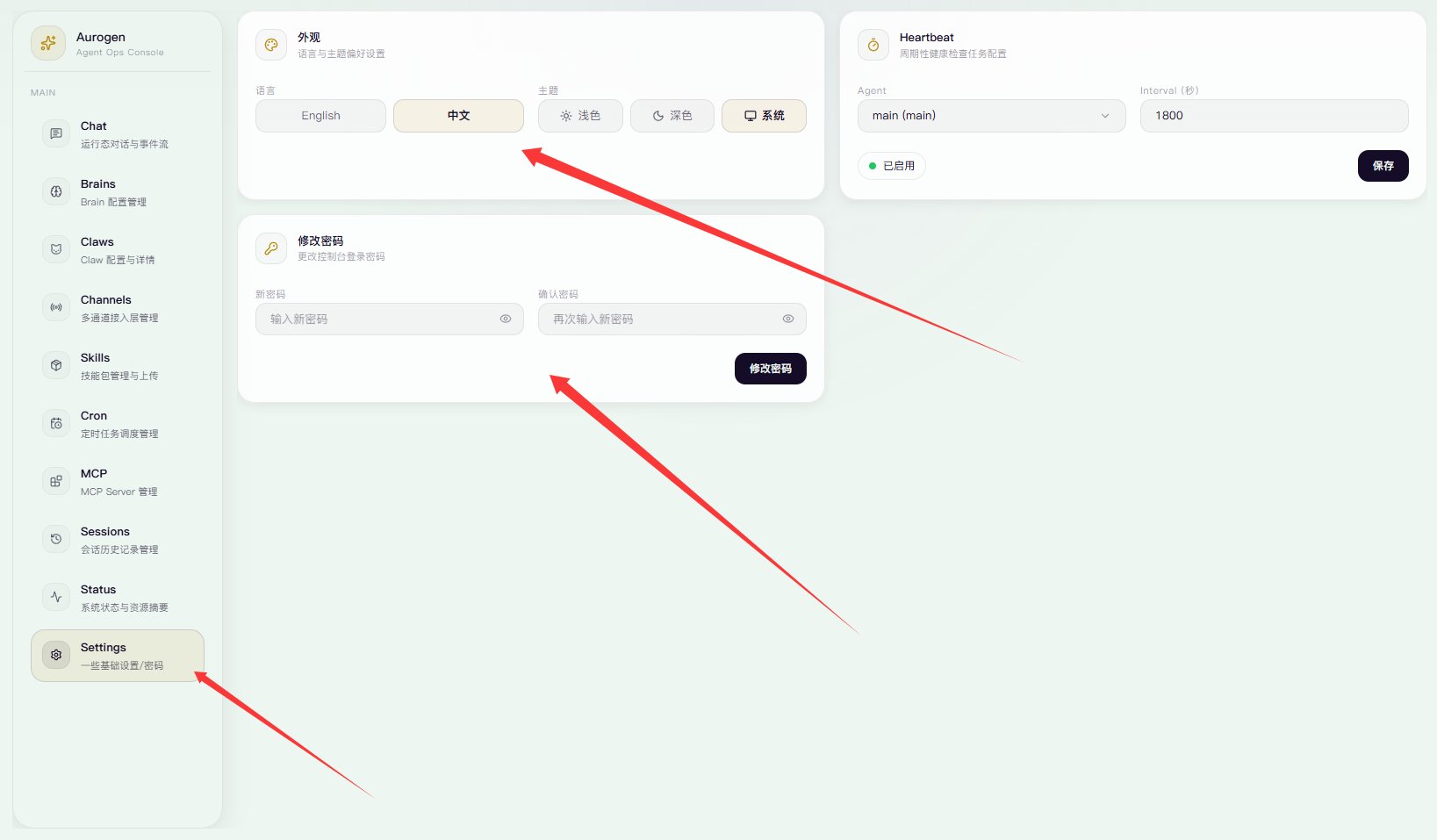 In the settings panel on the left, you can switch to **Chinese**, change the theme, and update the password.
## Configure your first ClawBot
1. Click **Brains**.
**Brains** is where you manage LLM API endpoints. You will see a default entry there.
In the settings panel on the left, you can switch to **Chinese**, change the theme, and update the password.
## Configure your first ClawBot
1. Click **Brains**.
**Brains** is where you manage LLM API endpoints. You will see a default entry there.
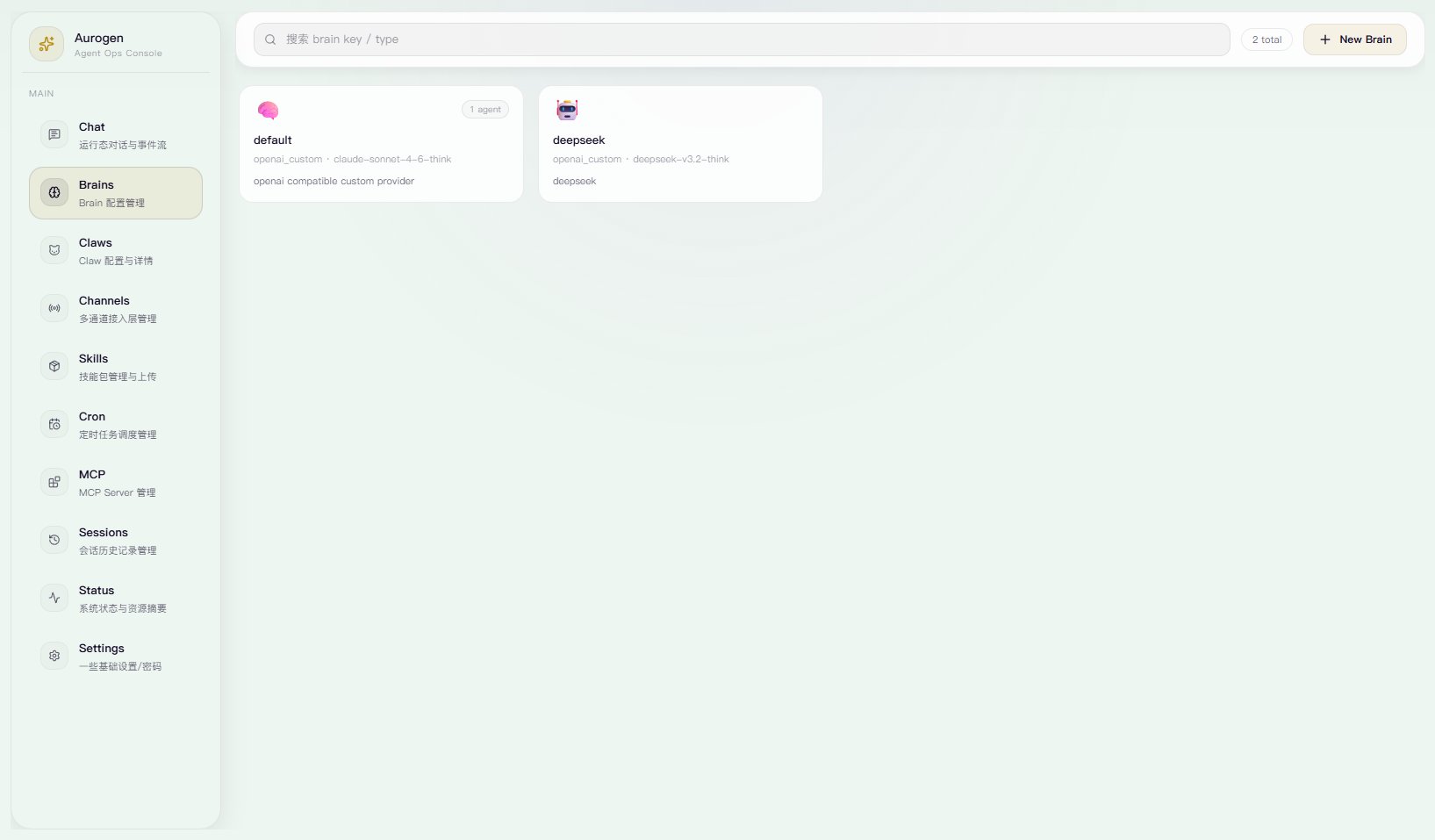 Click the default Brains card, then click **Edit**.
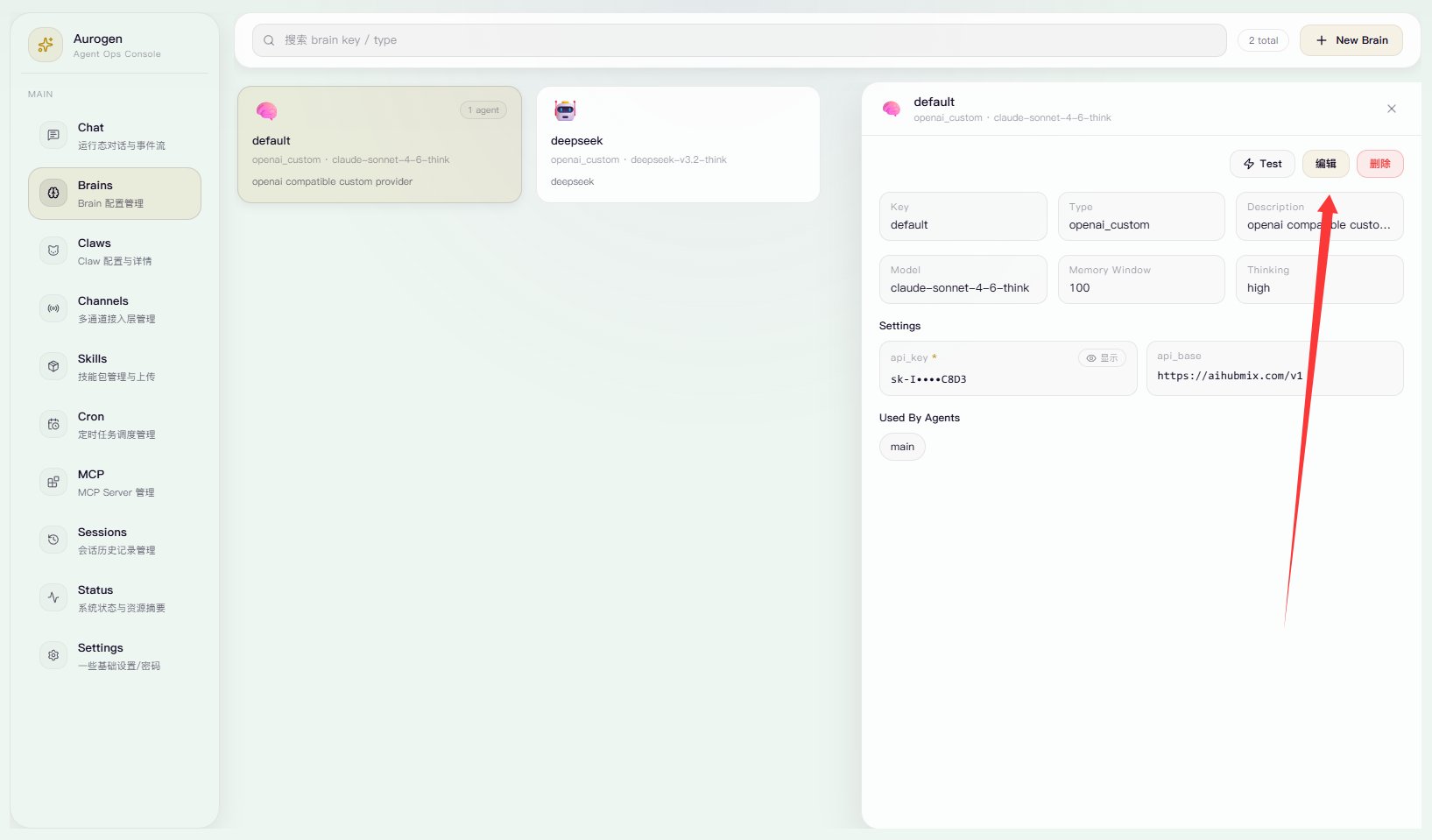 Set the **API key** and **API URL**. You can also switch the provider. Then set the model ID and choose whether to enable thinking.
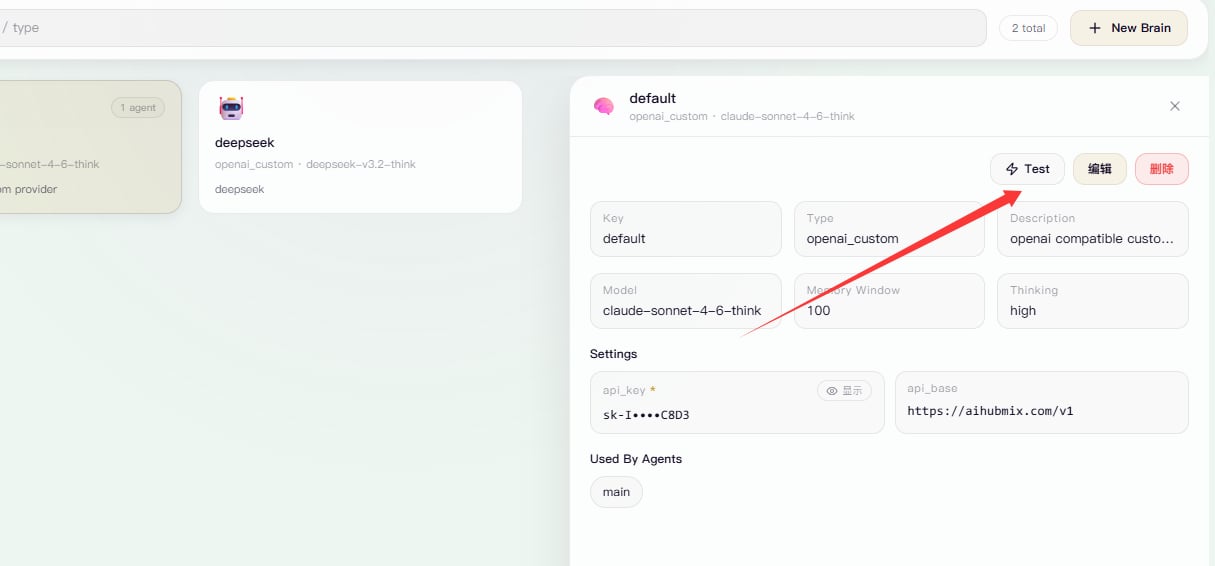 Click **Test** and make sure it returns successfully.
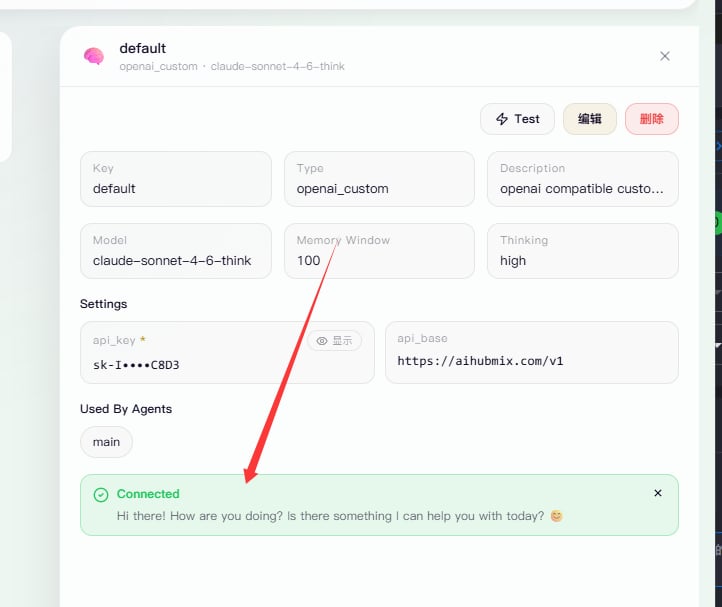 That is it. You have finished the basic setup.